
Setup & Technical Fundamentals
Trading Stream Webcam Optimization: Clear Charts, Clean Video
25th May•10 min read
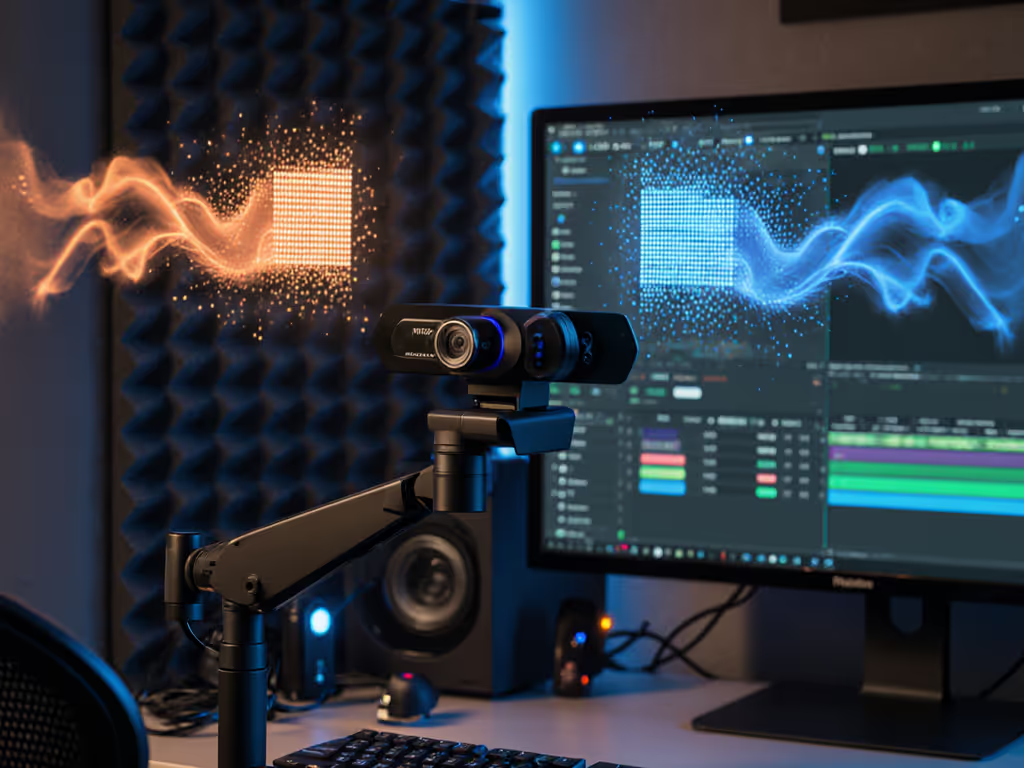
When your Twitch stream hangs because of bandwidth spikes or your YouTube tutorial stutters mid-sentence, webcam video encoding is likely the silent culprit, not your internet. As creators on tight schedules know, understanding MJPEG vs H.264 streaming isn't just technical trivia; it's your insurance policy against live-stream disasters. After rebuilding my entire setup following a sponsor stream crash caused by a driver update, I now track cost-per-stream and prioritize rock-solid reliability over efficiency claims. Let's cut through the jargon with budget clarity and a checklist-driven approach to match your codec choice to actual streaming stress tests, not spec sheets. If your bottleneck is your connection, start with our streaming internet requirements guide.
Webcams don't just capture pixels, they package them into streams using compression formats that directly impact your on-air reliability. MJPEG and H.264 handle this differently, creating trade-offs between bandwidth, CPU load, and failure points:
MJPEG treats video as a rapid series of individual JPEG images. Each frame is fully compressed like a standalone photo. This simplicity means:
✅ Lower decode CPU usage (critical for older laptops or multi-tasking setups)
✅ Near-zero latency (no frame prediction delays)
❌ High bandwidth consumption (5-20x more than H.264 at same resolution)
❌ Massive storage demands for recordings
H.264 uses inter-frame compression, storing only changes between frames. This efficiency comes with risks:
✅ Drastically reduced bandwidth (as little as 10% of MJPEG during low-motion scenes)
✅ Smaller storage footprint
❌ Higher CPU load for decoding (strains weaker systems)
❌ Latency spikes during sudden motion (e.g., hand gestures in tutorials)
Stable beats shiny. Prioritize predictability when your stream starts in 5 minutes.
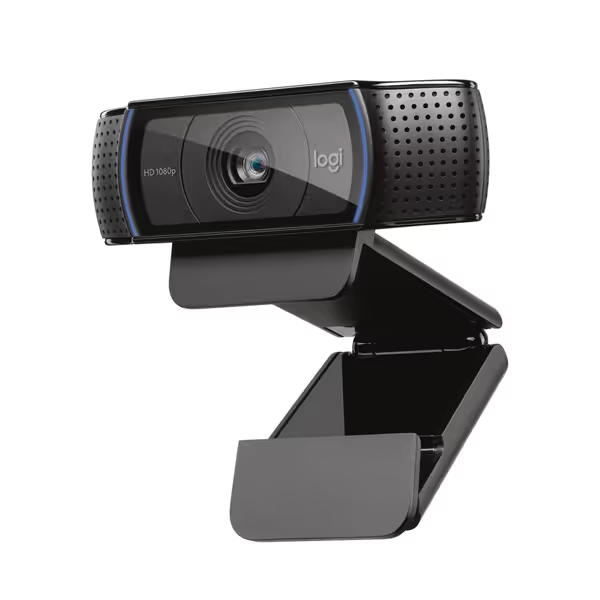
Don't default to H.264 just because it's marketed as "efficient." Match the codec to your actual workflow using this triage checklist:
Real-world test: Run OBS with both codecs at 1080p30. If your stream's CPU usage exceeds 65% on H.264 but stays under 50% on MJPEG, simplicity wins. Not sure which tool to stream with? See our OBS vs StreamYard comparison for reliability without setup headaches.
Critical caveat: H.264's video quality impact escalates with lighting changes. Dial in your scene with our streaming lighting setup guide to minimize compression artifacts. Striped clothing or rapid hand movements (e.g., beauty tutorials) can trigger bandwidth spikes as the encoder struggles, potentially exceeding MJPEG's usage. Always test with your exact backdrop and motion patterns.
I've seen too many creators skip validation only to face "why is my stream blurry?" mid-session. Run these 3 checks before showtime:

Streaming CPU usage isn't just about your machine, it is also how platforms re-encode your stream. This creates brutal mismatches:
Always cross-check platform-specific limits. For help choosing where to go live, see our Twitch vs YouTube Live comparison. Twitch's 6000kbps max? Great, but if your upload is 3000kbps, H.264's efficiency only matters if your CPU can sustain it without dropped frames.
Despite H.264's bandwidth benefits, I've mandated MJPEG for 70% of client setups after tracking cost-per-stream failures. Prioritize it when:
One beauty creator cut stream failures by 90% switching from H.264 to MJPEG, even though her bitrate doubled. Her laptop's integrated graphics choked decoding H.264 during makeup demonstrations, causing frame drops her audience saw as "stutter." With MJPEG, CPU usage stayed flat. Budget clarity means counting revenue lost to stream resets, not just Mbps.
Spend once on what works every stressful Tuesday night.
Don't trust marketing claims, validate with your exact setup:
If MJPEG looks smoother to you under stress, ignore "efficiency" dogma. Stable beats shiny, especially when your next sponsor stream starts in 10 minutes. I've rebuilt my workflow around this truth after one catastrophic driver update, and it's why my streams hit 'Go Live' without tinker time. Your reputation depends on predictability, not peak specs.