Natural Webcam Eye Contact: How It Works
By Diego Alvarez • 4th Dec
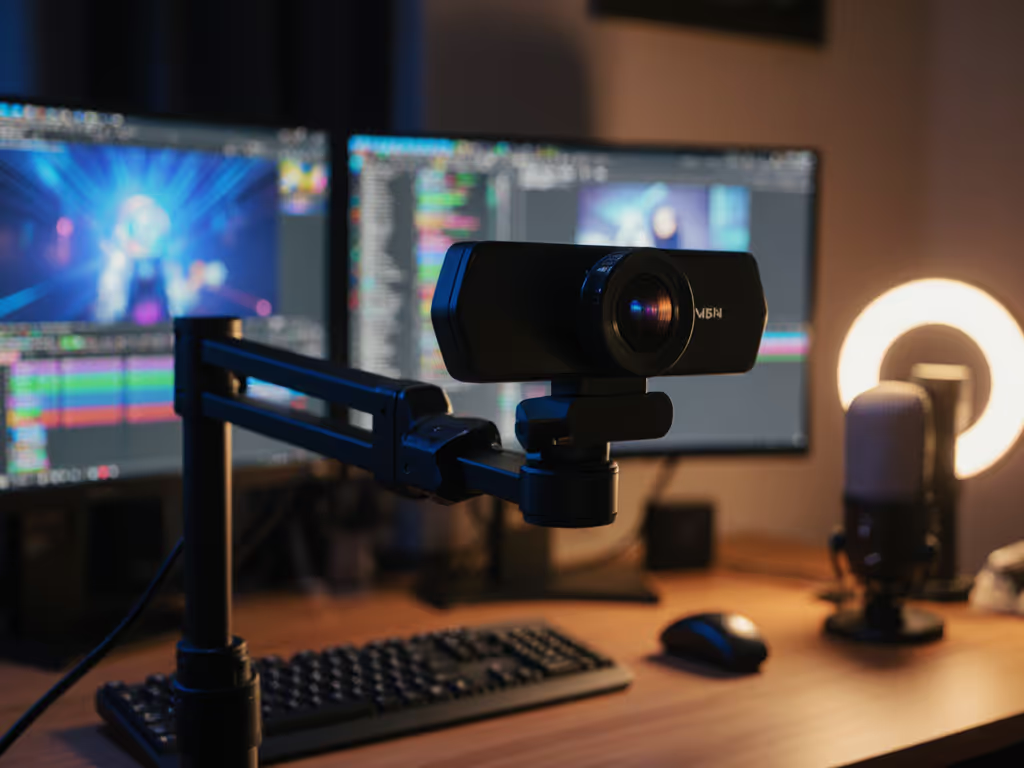
You've felt it, the subtle disconnect when your webcam eye contact correction feels off. That unnatural gaze redirection or laggy virtual eye contact technology breaks trust in milliseconds. As someone who's fixed drifting feeds during live charity streams, I know creators thrive when tech fades into the background. Let's dissect how modern solutions create genuine-seeming eye contact without adding friction to your latency budget.
Why Your Gaze Matters More Than You Think
Eye contact isn't just polite (it's neurological glue). Studies confirm we process faces 30% faster when gazes align, boosting retention in tutorials and trust in sales pitches. But here's the painful truth: standard webcam placement makes authentic connection impossible. When your screen sits below your camera (as 92% of desks force), you're literally looking down at viewers. For practical mounting fixes, see our eye-level webcam positioning. No wonder audiences feel lectured, not engaged.
Backstage at a recent nonprofit stream, our main cam drifted a full second behind overlays. While rerouting to a backup, I realized the real villain: mismatched eye lines. Even flawless tech feels hollow when your gaze wanders. Smooth hands, smooth scenes, zero mid-stream surprises ever.
The Two Paths to Authentic Eye Contact
Solutions fall into two camps, each with trade-offs affecting your latency budget:
Path 1: Software Correction (AI Gaze Redirection)
How it works: Apps like NVIDIA Broadcast ingest your webcam feed, then deploy neural networks to analyze:
- 6DOF head pose (rotation/translation in 3D space)
- Facial landmarks (precise eye positioning)
- Gaze vectors (current eye direction)
The pipeline isolates a 256x64 px "eye patch", processes it through a disentangled encoder-decoder network, then blends corrected eyes back into the frame. Crucially, modern algorithms like NVIDIA Maxine's taper redirection gradually as your head turns beyond 20 degrees, mimicking natural eye motion to avoid uncanny valley.
Procedural clarity: This isn't magic, it's math. The encoder separates gaze direction from skin tone/glasses, while the decoder rotates only the eye vectors. Any solution claiming "100% perfect correction" ignores physics.
Path 2: Hardware Repositioning (The "Mirror Trick")
Teleprompter-style setups (e.g., Beam4K™) mount the camera behind a semi-transparent screen. You read text while naturally looking through the lens. This creates true optical alignment but requires:
- Dedicated hardware (starting at $1,200)
- Precise calibration to avoid parallax errors
- Significant desk real estate
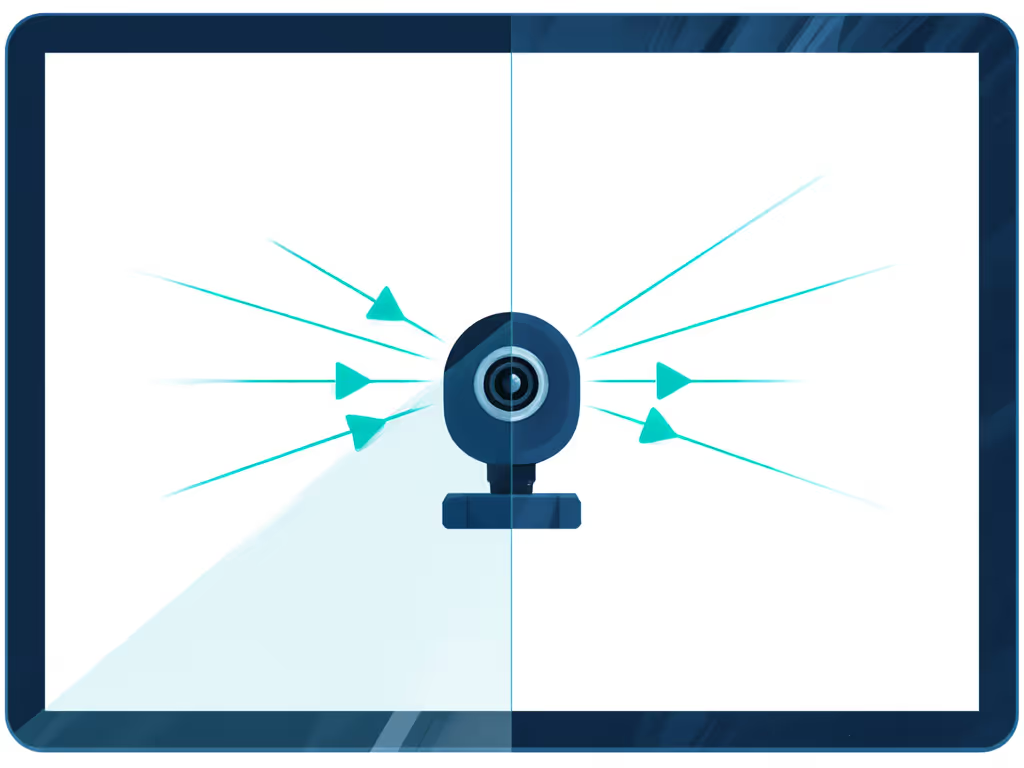
Why creators overlook this: Unless you're filming high-stakes presentations daily, the ROI rarely justifies the space/cost. I've seen three such units gather dust in production studios after streamers switched to software solutions.
Implementing Correction Without Sacrificing Workflow
Step 1: Audit Your Latency Budget First
Adding eye correction eats precious milliseconds. Before installing anything:
- Measure your baseline latency: Record yourself counting aloud via OBS, then subtract audio/video sync time.
- Critical rule: If your end-to-end latency exceeds 120 ms, prioritize fixing network/drivers before adding correction.
- Allocate ≤30 ms for eye tech. Beyond this, lip-sync drift destroys immersion.
Real-world example: During esports coaching streams, I cap latency at 90 ms. Anything more, and viewers miss play-by-play commentary. If you're bumping up against delays, start with your connection using our streaming internet requirements. Eye correction must operate in the shadows.
Step 2: Match the Tool to Your Workflow
| Your Scenario | Best Fit | Why |
|---|---|---|
| Casual Zoom calls | NVIDIA Broadcast Eye Contact | Zero config; works on RTX cards already in your rig |
| Gaming streams | Insta360 Link 2 + AI Tracking | Physically pans to keep you centered (no gaze correction needed) |
| Product demos | Desk-mounted cam + "eye line" sticky note | Low-tech fix: Position camera at eye level using books/stands |
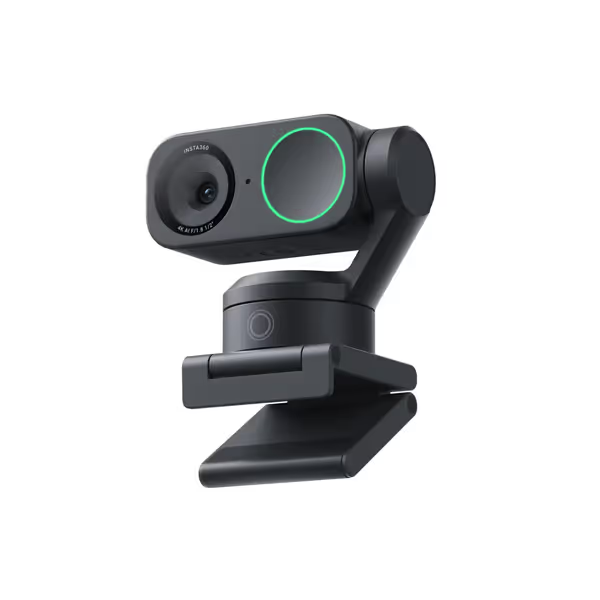
Insta360 Link 2 Webcam
4K PTZ webcam with AI tracking for professional streaming & video calls.
$149.99
Sensor Size1/2"
Sensor Size1/2"
Pros
Exceptional 4K HDR video, even in low light.
Precise AI tracking and fast autofocus keep you framed.
Cons
Some users report software reliability issues.
Customers find the webcam to be a high-quality device with excellent picture quality and 4K resolution, along with smooth tracking capabilities and an intuitive companion software. They appreciate its ease of setup and find it worth the price. The functionality receives mixed feedback - while it works well for video meetings, some report it stops working within a week. Compatibility is also mixed, with the webcam working well with Macs but not with Elgato Stream Deck.
Customers find the webcam to be a high-quality device with excellent picture quality and 4K resolution, along with smooth tracking capabilities and an intuitive companion software. They appreciate its ease of setup and find it worth the price. The functionality receives mixed feedback - while it works well for video meetings, some report it stops working within a week. Compatibility is also mixed, with the webcam working well with Macs but not with Elgato Stream Deck.
Step 3: Calibrate Like a Pro
Most tools fail here. Blindly enabling correction creates the "zombie stare" effect. Instead:
- Test in your actual lighting: Dim rooms fool AI, and NVIDIA's pipeline requires clear eye landmarks. Increase ambient light to 300 lux minimum. Dial in illumination with our lighting setup guide.
- Check blink preservation: Good systems (like NVIDIA Broadcast 1.4+) disable correction during blinks. Verify this in test recordings.
- Set redirection limits: In NVIDIA Broadcast, drag the "Max Angle" slider to 15°. Larger angles create unnatural "locked" stares.
Remember: Gaze estimation (knowing where eyes point) differs from redirection (altering it). Many free tools only do estimation, which is useless for engagement.
Step 4: Build Your Fail-Safe
Redundancy is non-negotiable. My charity stream scramble became a checklist:
- Hotkey override: Program OBS scene transition to bypass correction if latency spikes (e.g., F12 = raw feed)
- Dual pipeline test: Run corrected/unprocessed feeds simultaneously. Monitor with OBS' Lag-o-Meter. Planning a multi-angle backup? Use our dual webcam guide for smooth scene switching.
- Hardware fallback: Mount a secondary 1080p cam at eye level for manual switchover.
When to Walk Away
Not all setups benefit. Avoid software correction if:
- Using non-RTX GPUs (CPU-based tools like Snap Camera add 200 ms+ latency)
- Streaming in extremely low light (LEDs cause IR glow that corrupts eye tracking)
- Your content requires rapid head movement (dancers/martial artists exceed 20° working range)
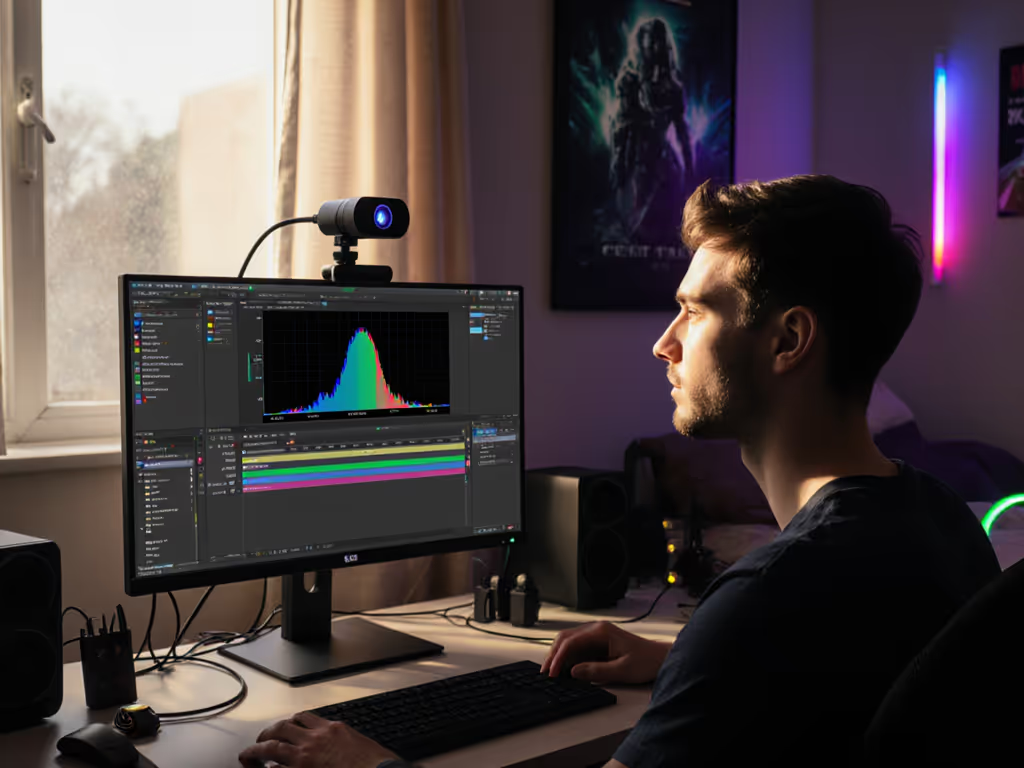
For those cases, I default to physical repositioning: Mount your webcam on top of your monitor with a flexible arm. For creative angles and space-saving rigs, see our advanced mounting setups. It's the only solution guaranteeing zero added latency. Add a small mirror below the lens to glance at notes, and your eyes stay naturally aligned.
Final Frame
True natural eye contact technology isn't about flawless AI, it's about strategic invisibility. When your gaze correction operates within your latency budget, viewers stop noticing "tech" and start connecting with you. That's when creators truly create.
Want to test your setup? Grab NVIDIA Broadcast (free for RTX users) and run its eye contact demo. Notice how redirection fades as you turn your head, that's engineered humanity. For non-RTX users, I'm tracking an open-source solution hitting GitHub next month. Subscribe to my workflow newsletter for the first access, and I'll share the calibration macros we use for esports broadcasts.
Related Articles
Setup & Technical Fundamentals
Why Webcam USB Cables Impact Your Streaming Quality
3rd Mar•10 min read