
Setup & Technical Fundamentals
Trading Stream Webcam Optimization: Clear Charts, Clean Video
25th May•10 min read
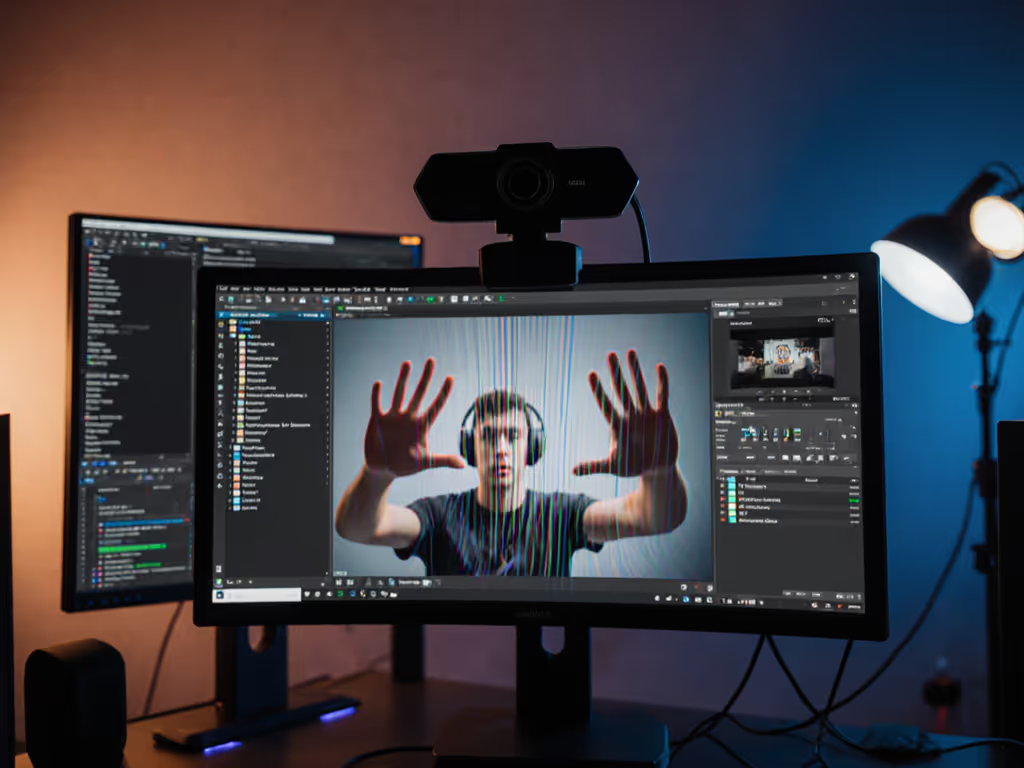
You've felt it, that moment your stream takes a jarring dip into the uncanny valley when you reach for your water bottle or adjust your headset. What you're experiencing is the rolling shutter phenomenon, and understanding it separates amateur broadcasts from sponsor-ready streams. Let's cut through the confusion around global shutter webcam technology and transform this technical headache into your next competitive advantage.
As a creator who's pressure-tested gear during live sponsor segments (with no room for error), I've learned: If it fails live, it fails the brief. Full stop. This isn't about chasing specs; it's about delivering what your audience actually sees. Let's translate these sensor quirks into the viewer experience.
Imagine your camera sensor reading the scene like a scanner moving down a document (top to bottom). This sequential capture creates a tiny time gap (often milliseconds) between when the top of your frame is recorded versus the bottom. When you move quickly, whether it's turning your head, waving your hands, or even just tapping your desk, the camera captures different moments of that motion across the frame. The result? Skewed buildings, wobbly text, or that infamous "jello" distortion where solid objects appear to liquefy during motion.
Real impact: During my fitness coaching streams, this artifact made kettlebell swings look unstable, costing me viewer trust before I understood the root cause.
Rolling shutter dominates because it's cheaper to manufacture, generates less heat, and typically offers better low-light performance. But this engineering compromise becomes critical when:
Pro insight: That "motion artifact reduction" claim on cheap webcams? Often just aggressive digital stabilization that blurs detail, worse than the original distortion.
Unlike its counterpart, global shutter webcam technology captures every pixel simultaneously (like snapping a photo with a traditional DSLR). No time gaps between top and bottom of frame means no skew during movement. This becomes your secret weapon for:
Critical note: True global shutter sensors remain rare in consumer webcams due to cost, but high-speed streaming tech alternatives like fast-line-read CMOS sensors significantly reduce artifacts.
Don't trust marketing claims, test under your conditions:
Verdict threshold: If you see consistent skew across 3 tests, rolling shutter is impacting your professional image, and it's time for a solution. I've scrapped sponsor-ready gear over smaller flaws than this.
Many creators blame rolling shutter for issues that stem from:
Reality check: Boosting to 60fps often eliminates perceived rolling shutter issues for most talking-head streams, making it the most cost-effective first fix. For a deeper dive into which resolutions and frame rates actually matter on stream, read our 1080p vs 4K streaming guide.
You don't need a $1,000 broadcast setup. Try these stream-tested fixes:
Creator tip: I keep a small desk fan vibrating my setup during testing, that reveals rolling shutter issues before my audience does.
Ignore vague "pro streaming" claims. Demand these specifics:
Hard truth: That shiny new webcam touting "4K" might have worse motion handling than last year's 1080p model if it neglects sensor technology fundamentals.
While true global shutter solves motion artifacts completely, it's still rare in sub-$300 webcams due to cost and complexity. Some "global shutter" claims actually refer to workarounds that mimic the effect like:
Trade-off alert: Early global shutter webcams often sacrifice low-light performance, unacceptable for night streamers. Research actual lab results, not marketing sheets.
Trust the prep. What works in a silent showroom won't save you when chat spikes during a sponsor segment.
If you broadcast motion at professional speed (whether hands in cooking demos, dance routines, or rapid product showcases), rolling shutter matters. For static talking-head streams, boosting frame rate and lighting often solves the issue more cost-effectively than hunting for elusive global shutter tech.
The winners aren't those with the most expensive gear, but those who understand their actual use case. Test like failure isn't an option, because for sponsors, it isn't. When your motion stays crisp through 30 seconds of rapid gestures, you've crossed into broadcast-grade territory.
Your next move: Run the 30-second stress test tonight. If your stream survives that movement test, you've got room to grow. If not... well, now you know exactly what to fix. Trust the prep, and keep shipping.