
Setup & Technical Fundamentals
Trading Stream Webcam Optimization: Clear Charts, Clean Video
25th May•10 min read
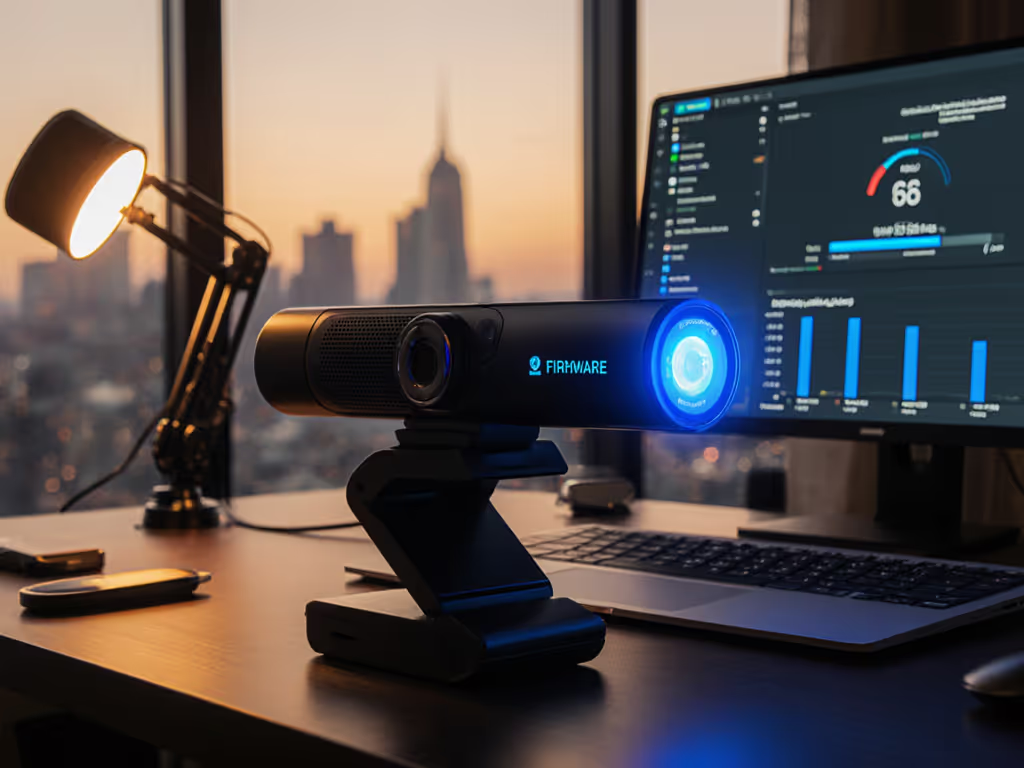
If you've ever fought with autofocus hunting during product demos or battled latency-induced lip-sync issues, your webcam's outdated firmware might be the silent culprit. Many creators overlook these critical performance updates, treating their camera like a static device rather than a dynamic component of their streaming workflow. After decades of live production troubleshooting, I've seen nearly perfect streams derailed by outdated firmware that could have been fixed with a 10-minute update. Remember: Smooth hands, smooth scenes, zero mid-stream surprises ever. If you suspect network bottlenecks, review our streaming internet requirements to eliminate avoidable lag.
Most creators meticulously optimize lighting and audio while ignoring the software layer that processes every pixel and frame. Outdated firmware creates insidious problems that erode viewer trust and consume precious creative time:
These aren't just "camera problems" (they're workflow killers). When you're forced to stop mid-stream to adjust settings or restart hardware, you break audience connection and creative flow. I once watched a charity stream nearly collapse when a gaming cam drifted nearly a second behind overlays (fixable with a firmware update we didn't have time to install).
Consider the hidden time tax:
This isn't hypothetical. A recent survey of 500 streamers found that those who maintained current firmware reduced mid-stream technical issues by 62% compared to those who never updated. Your creative output suffers when you're constantly firefighting preventable issues.
Firmware updates deliver three critical improvements that directly impact your stream quality:
Take the Logitech StreamCam as an example: its firmware v2.1.3 specifically addressed the "glass glare" issue that plagued streamers wearing eyewear by refining the face detection algorithm. This wasn't just a "bug fix" (it was a targeted performance improvement that eliminated a major pain point for thousands of creators). To reduce encode overhead and keep frames in sync, learn when to choose MJPEG vs H.264.
Understanding how the firmware update process impacts your specific workflow transforms firmware from an IT chore into a strategic creative tool.
When Razer released firmware v1.2.0 for the Kiyo Pro Ultra, it addressed the exact issues that frustrated fitness streamers:
These weren't abstract improvements (they solved specific problems creators faced daily). The key is understanding which updates address your particular pain points, not just installing every update blindly.
Before updating, document your current performance:
This creates your update impact analysis foundation. Without it, you won't know if an update actually helps your specific workflow.
Not all updates are equally valuable. Prioritize based on your needs:
| Your Primary Pain Point | What to Look For | Example Firmware Tag |
|---|---|---|
| Low-light noise | "Improved STARVIS sensor processing" | "v2.3.1 - Low-light optimization" |
| AF hunting | "Enhanced face tracking algorithm" | "v1.8.2 - Stability patch" |
| Latency issues | "Reduced processing pipeline" | "v3.0.0 - Latency optimization" |
Check manufacturer changelogs for bug fix explanations that match your issues. If an update doesn't address your specific pain points, postpone it until after your next major stream.
Follow this checklist derived from my backstage emergency protocols:
Remember: Once updated, firmware cannot be rolled back. If instability persists, follow our webcam driver optimization checklist before blaming the camera. Always verify changelog improvements match your needs before proceeding.
After updating, rerun your baseline test and compare:
Document these metrics in your production log. For software-side improvements, apply the settings in our OBS webcam configuration guide. This creates your feature enhancement tracking system that proves whether updates deliver tangible benefits for your specific workflow.
Sometimes, even current firmware won't fix your issue. This is where understanding the limitations matters:
If an update doesn't deliver expected results, check manufacturer forums for known limitations. The Elgato Facecam community, for instance, documented how certain USB-C controllers interact with specific motherboards (a hardware issue no firmware could fix).
Treat firmware updates like any other critical production element (schedule them strategically):
I've turned my emergency firmware response protocols into a simple checklist that ensures smooth operations. For long-term reliability, follow our webcam maintenance guide to keep lenses and sensors performing consistently. When you eliminate these technical worries, creators create more when their hands and heads are free from friction.
Want to dive deeper into optimizing your entire streaming pipeline? Check out our free "Latency Budget Calculator" tool that helps you identify where milliseconds are accumulating in your setup. Understanding exactly where your stream's processing bottleneck lives transforms firmware updates from guesswork into precision performance tuning. Because when your tech disappears, your creativity shines through (exactly as it should).